
Securing Azure Active Directory (Azure AD) involves implementing a combination of controls and best practices to protect your organization’s identity and access management. Here are some steps you can take to secure Azure AD:
- Use Multi-Factor Authentication (MFA) to add an extra layer of security for users logging in to Azure AD:
- In the Entra admin center, navigate to the Azure AD and select “Azure AD” > “Users” > “All users”
- Select the users you want to enable MFA for, click Per-User MFA and then click “Enable”

- Enable Azure AD Conditional Access to set policies that control access to Azure AD resources based on specific conditions such as device compliance, location, and user identity:
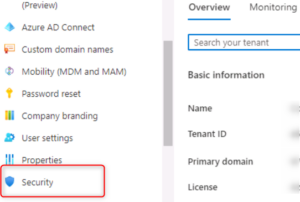
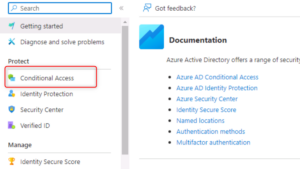
- In the Azure portal, navigate to the Azure AD and select “Azure AD” > “Security” > “Conditional access”
- Create a new policy by clicking on “New policy” and configure the conditions, such as location and device compliance, that must be met before access is granted:
- Implement Azure AD Identity Protection to detect suspicious login activities and take action to prevent them:
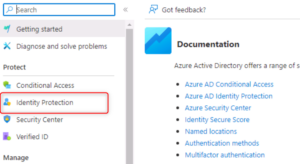
- Navigate to the Azure portal and select “Azure AD” > “Security” > “Identity Protection”
- Configure Azure AD Identity Protection by setting up risk policies and creating sign-in and anomaly detection policies:
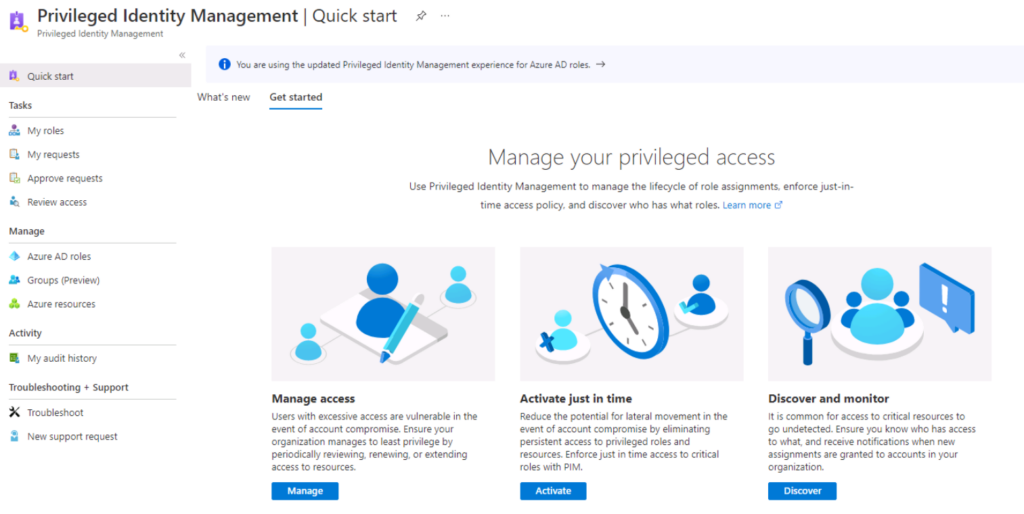
- Use Azure AD Privileged Identity Management (PIM) to manage and monitor privileged access to Azure AD resources:
- Navigate to the Azure AD portal and search for “Privileged Identity Management”
- Configure Azure AD PIM by creating and managing roles for Azure AD resources and assigning them to users.
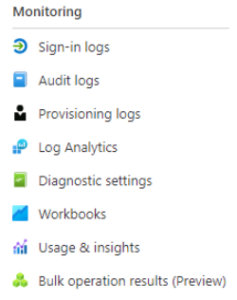
- Utilize Azure AD’s built-in reporting and auditing capabilities to track user access and detect any suspicious activity:
- Navigate to the Azure AD portal and select “Azure AD” > “Audit logs”
- Use the built-in reports and filters to review user access and detect suspicious activity
- Implement Azure AD security best practices, such as using strong passwords, limiting the number of global administrators, and regularly reviewing and revoking unnecessary permissions:
- Navigate to the Azure AD portal and select “Azure AD” > “Users” > “All users”
- Configure password policies for users and limit the number of global administrators
- Regularly review and revoke unnecessary permissions for users and groups
It’s important to note that security is a continuous process and you should revisit and review your Azure AD security regularly to ensure it remains effective.
Leave A Comment?