
Navigate to Exchange Admin Portal (admin.exchange.microsoft.com) and select (1) Mail flow -> (2) +Add a rule -> (3) Filter messages by size:

Enter a (1) name for the rule (i.e. Set size restriction) and from the drop-down list of Apply this rule if * select (2) The message and (3) size is greater than or equal to. To set the size limit click on the (4) enter text and set the size:

Next, from the drop-down list of Do the following select (1) Block the message and (2) reject the message and include an explanation. Click on the (3) enter text to enter an explanation and click Next to continue:

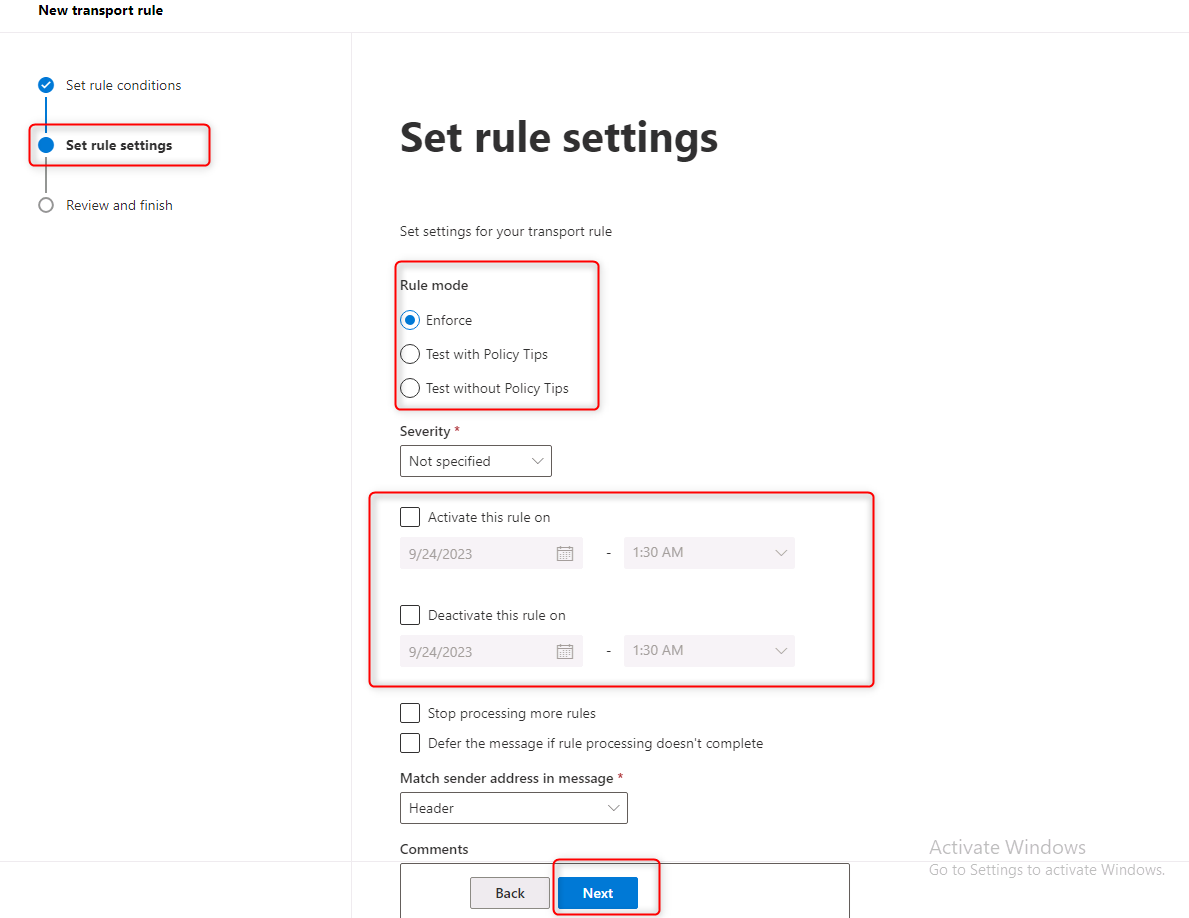
In the Set rule settings page, there are options to set the rule. For example, mode or activation date. Then click Next.
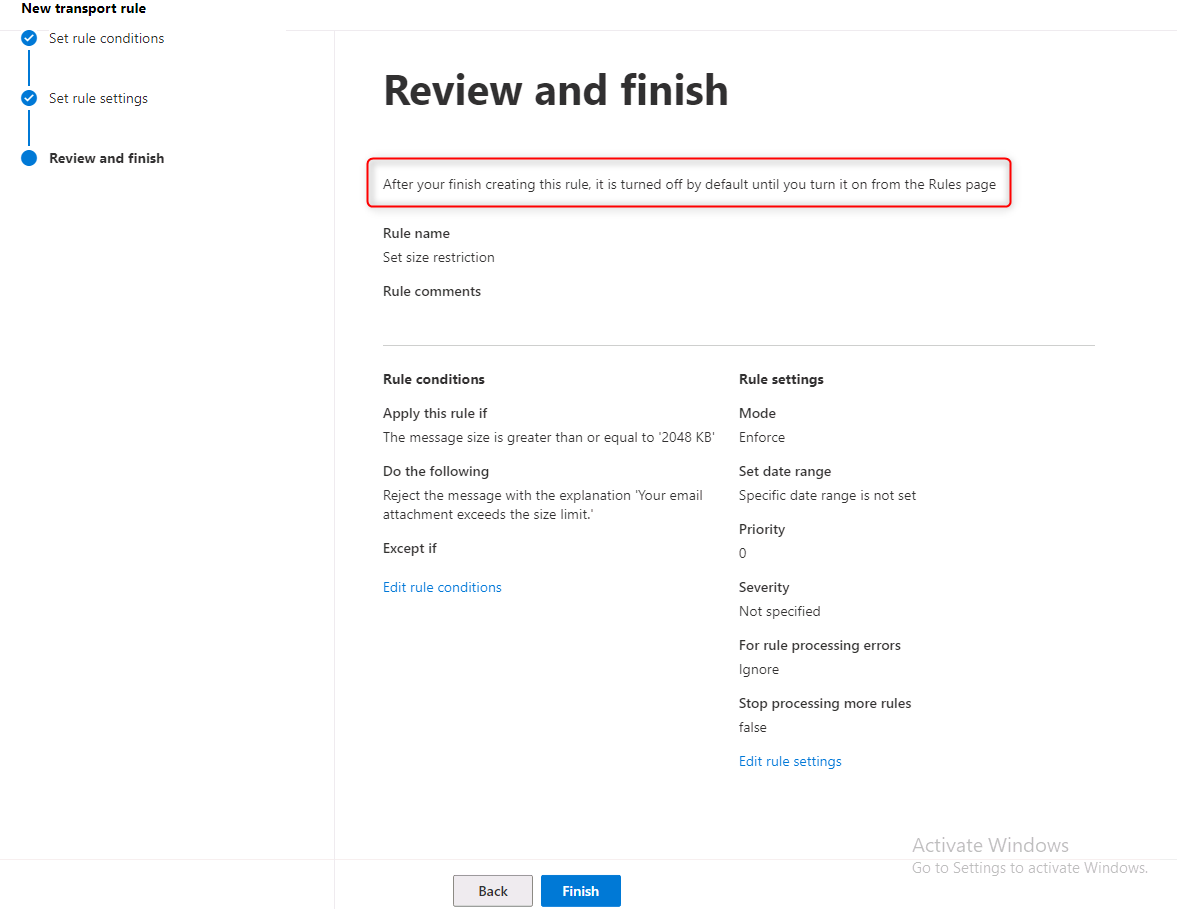
In the next step, you can review the created rule:
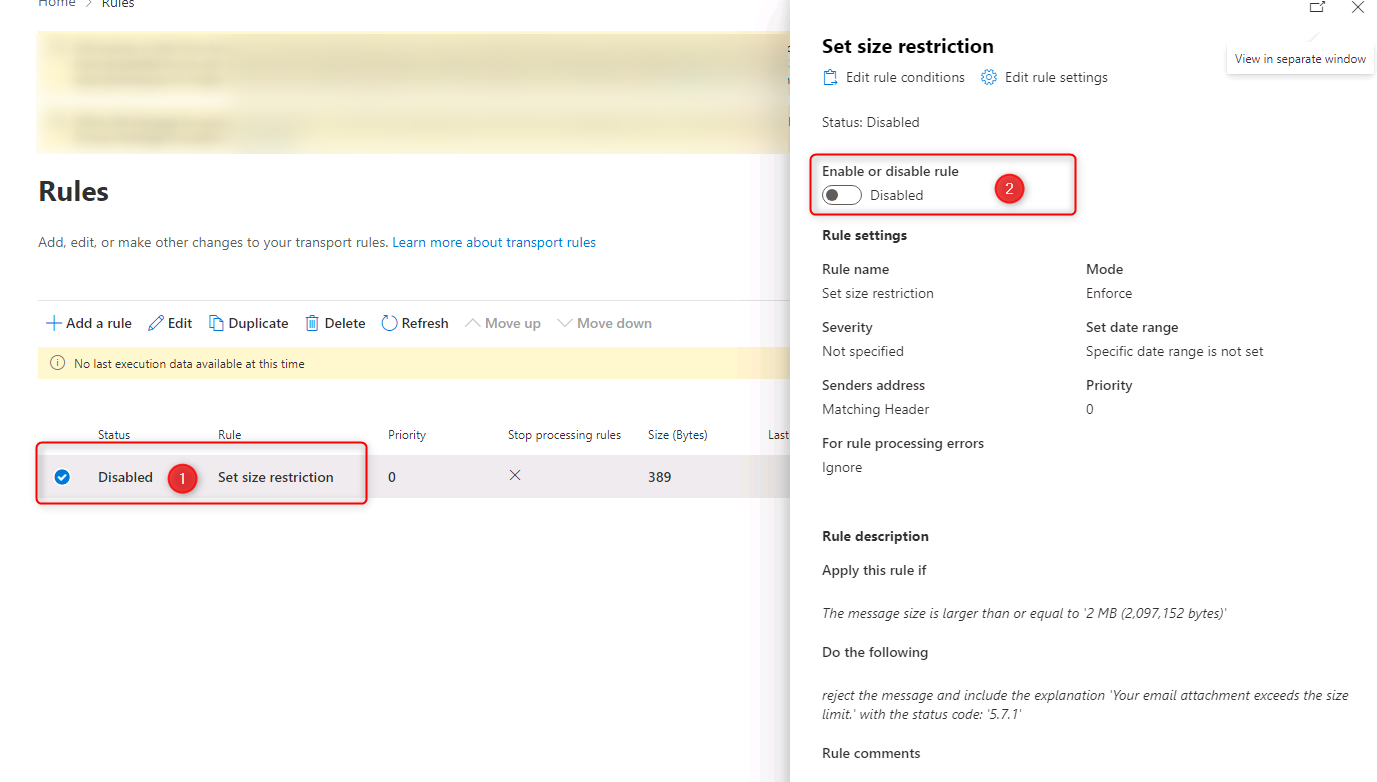
The rule is turned off by default. You can enable it by selecting it from the Rules page and clicking Enable:
Leave A Comment?